CREATOR TOOLKIT · OCTOBER 23, 2026
OBS Not Recording Your Microphone? Start Here
Find the next check based on what you can see and hear, without changing every audio setting at once.
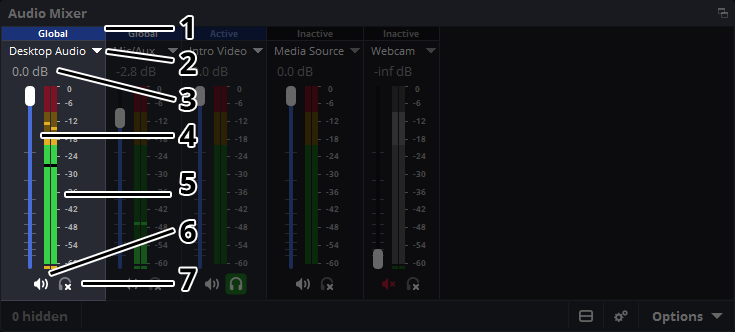
First separate two problems: OBS is not receiving your voice, or OBS receives it but your saved file does not play it back. Speak normally and look at the microphone channel in the Audio Mixer. Activity on Desktop Audio alone is not a microphone test.
Choose the symptom
The microphone meter does not move
Check the microphone connection and its physical mute switch. Try your operating system’s input test. If that cannot hear you either, focus on the device and system microphone permissions before changing OBS.
If the system hears you, open Settings → Audio in OBS and choose your microphone explicitly for Mic/Auxiliary Audio. A default device can point somewhere unexpected after connecting a headset. Speak again and check the correct channel.
The meter moves, but playback is silent
Check the channel’s mute button and fader, then make a short new recording. Test playback with headphones at a normal volume. If you use multiple audio tracks, check which track your player is playing and whether your recording configuration includes the microphone. Keep a note of your current settings before changing them.
Do not assume an old recording can be repaired by changing settings now. Test the new file after each change.
My voice is quiet or distorted
Start at the microphone: maintain a consistent distance and check any gain control. Then inspect system input level and the OBS fader. Raising everything at once makes the cause harder to identify. Record the same sentence after one adjustment and compare playback at the same listening volume.
If speech sounds harsh, turning the playback volume down does not undo distortion already captured in the recording. Improve the input and record again.
A useful 30-second diagnostic recording
- Say the name of the microphone you selected.
- Speak one ordinary sentence at your intended distance.
- Pause briefly, then speak again.
- Stop recording and listen to the saved file. Note whether speech is absent, too quiet, distorted, or uneven.
This produces a specific symptom you can investigate. Keep each trial short and change only one variable. Avoid deleting profiles or resetting everything as a first step; that can remove a working part of your setup.
Before asking for help
Write down your operating system, OBS version, microphone model, whether the system input test works, and whether OBS’s microphone meter moves. Describe what the saved recording sounds like. Those details are more useful than “audio is broken.” If you share screenshots, review them for private details first.
Make the next recording easier
Use the free pre-recording checklist before your next session, or follow the complete first-recording guide.
Sources
OBS quick-start guide · OBS Audio Mixer Guide. Consulted October 23, 2026.
Research-based guidance prepared with AI assistance and linked official documentation. Checklists and diagnostic suggestions are editorial aids, not hands-on test results. Interfaces vary by version. No affiliate purchase links.